
A friendly guide from SnailMailHQ
How to connect Kit to your SnailMailHQ club
Hello! Kit is where many artists send emails to their people.
When you connect Kit to your club, new members are added to your Kit list on their own. You don't have to copy anything by hand.
It takes about 5 minutes. Steps 1 to 4 happen in Kit. The rest happen in SnailMailHQ.
What you need
- A Kit account, and your Kit email and password.
- Your SnailMailHQ club. Kit works on both plans: Starter and Professional Studio.
One new word: "API key"
Kit calls it an API key. That's just a private code that lets SnailMailHQ talk to your Kit account.
In this guide we call it your private code. Treat it like a password. Don't email it or post it anywhere.
Step 1
Open Kit's Developer page
Log in to Kit.
Click Settings at the bottom left. Then click Developer.
Or type this into your browser: app.kit.com/account_settings/developer_settings
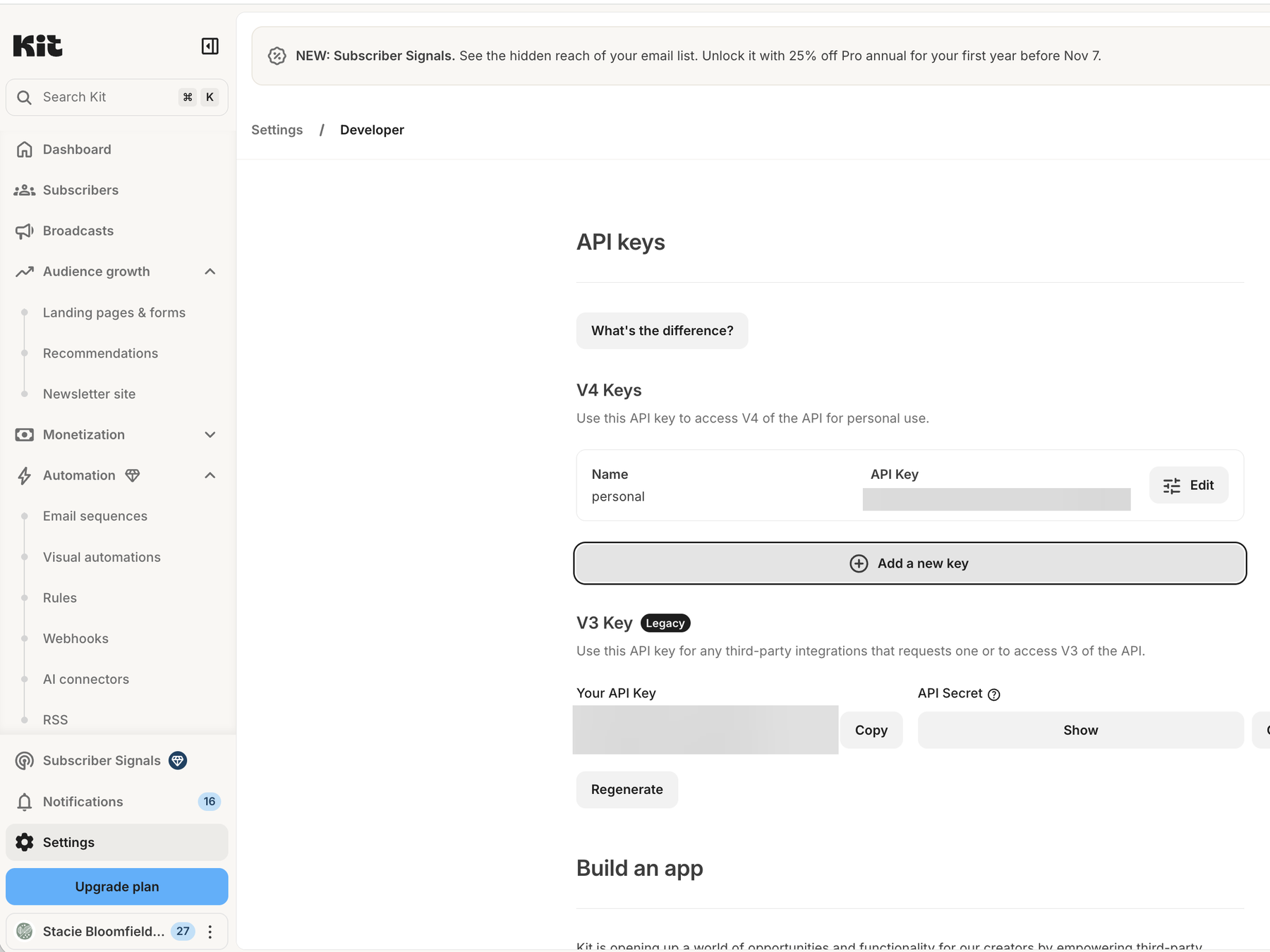
This is Kit's Developer page. The gray boxes hide private codes.
Step 2
Click "Add a new key"
Free Kit plans use the V3 key on this same Developer page. Paid plans can use V4.
Find the part called V4 Keys.
Click the wide button that says Add a new key.
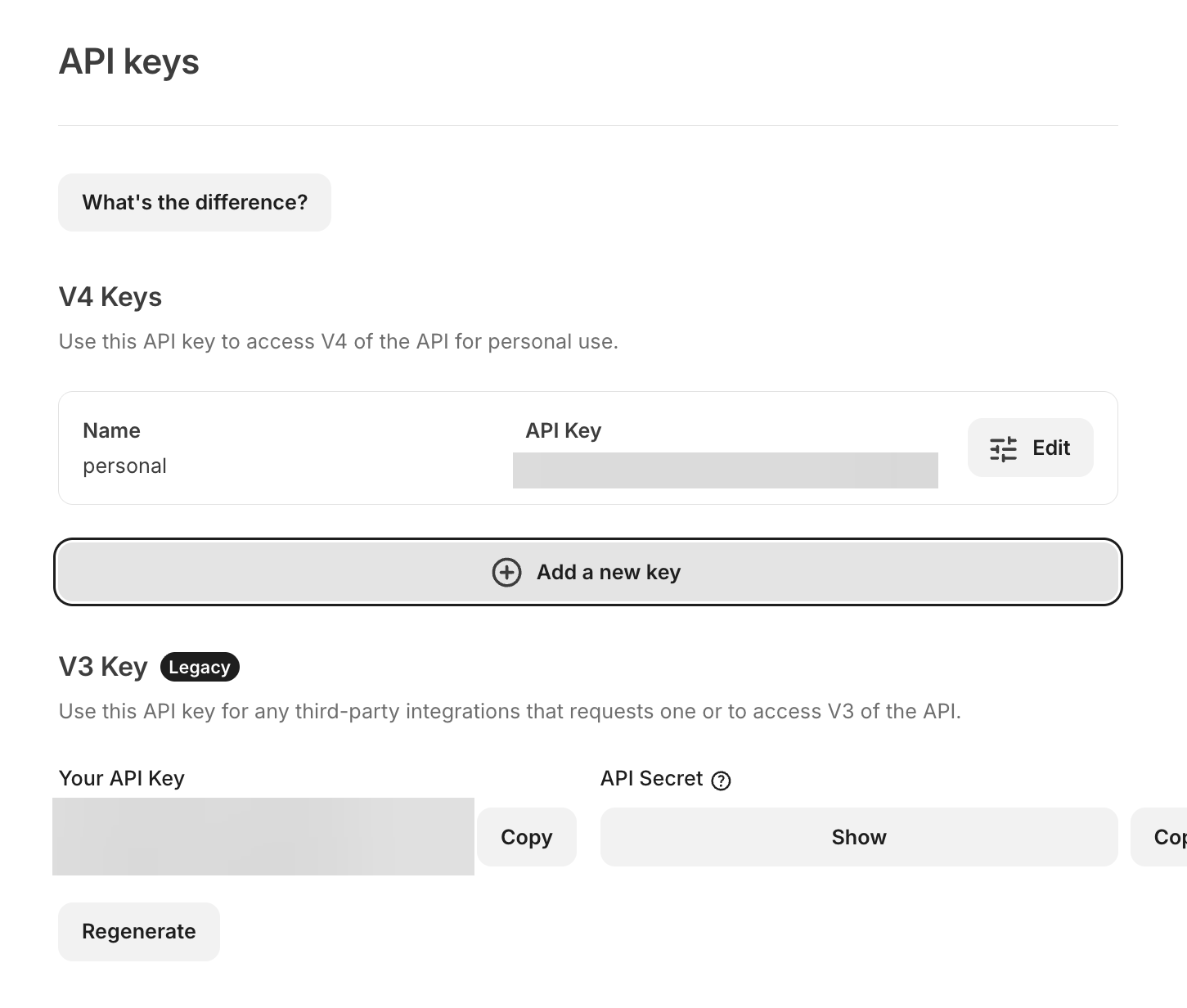
The "Add a new key" button is right under V4 Keys.
Step 3
Name it SnailMailHQ
A small box pops up.
Type SnailMailHQ in the Name box.
Then click Create API Key.
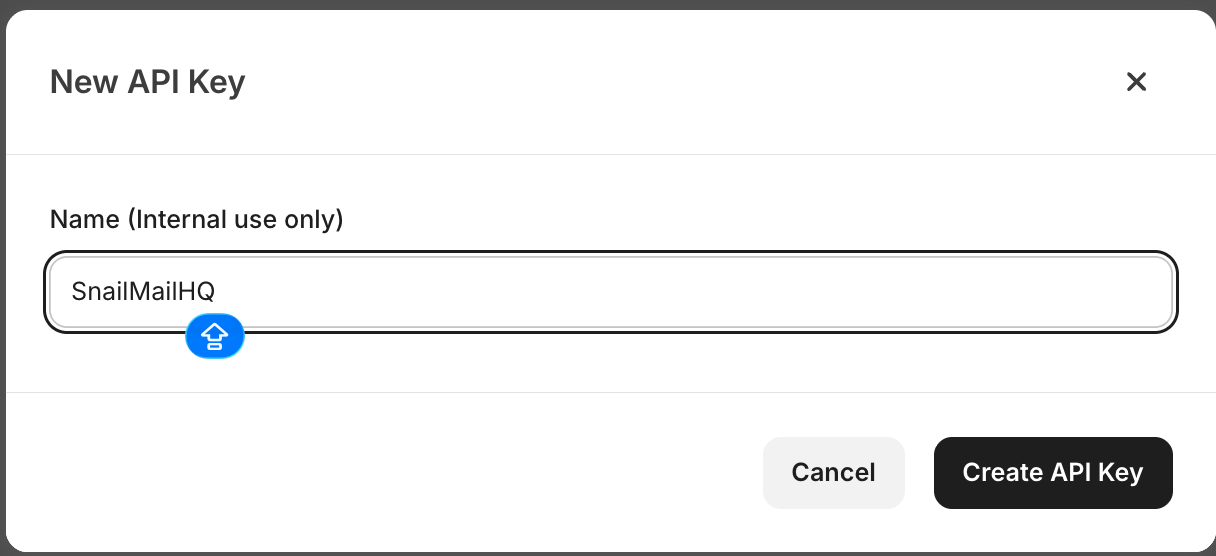
The name helps you remember what this code is for.
Step 4
Click Copy
Kit now shows your new private code. Click Copy.
Important: Kit shows this code only once.
So paste it into SnailMailHQ right away (Step 6). If you lose it, no worries. Just make a new one.
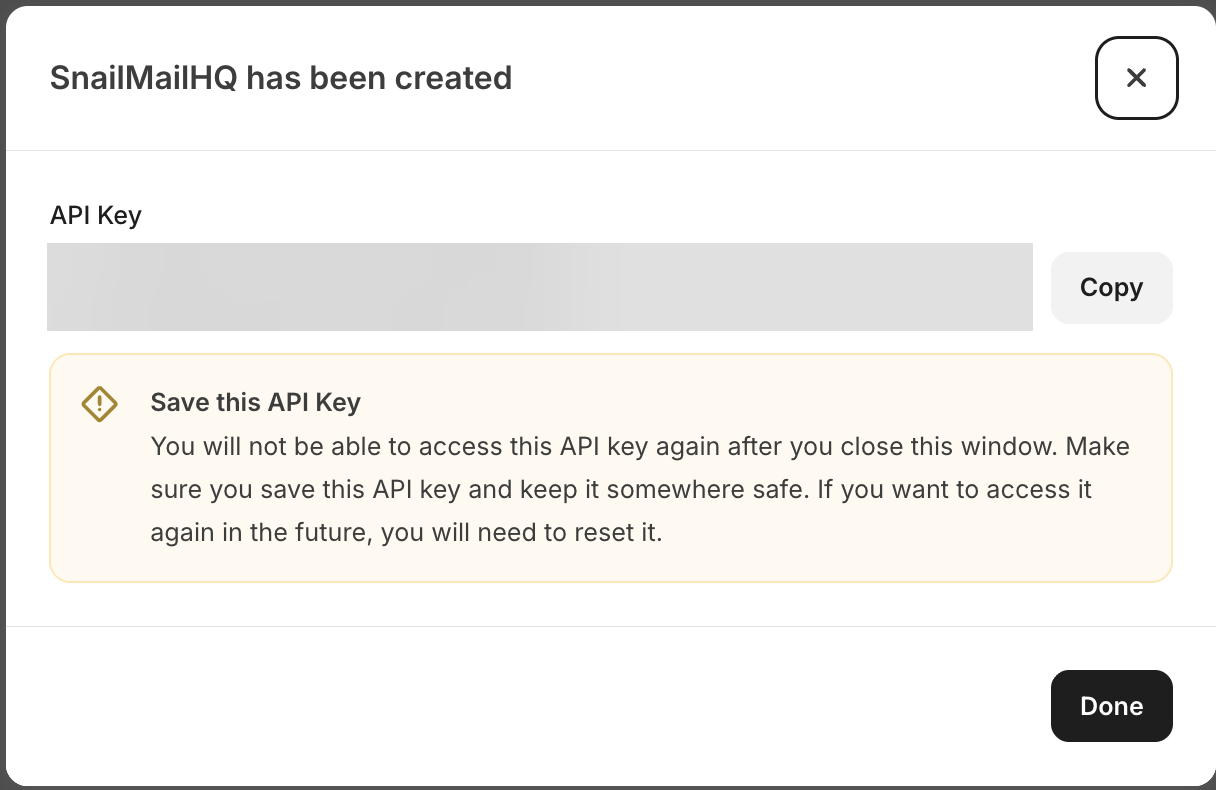
We hid our code with a gray box. You will see yours.
Step 5
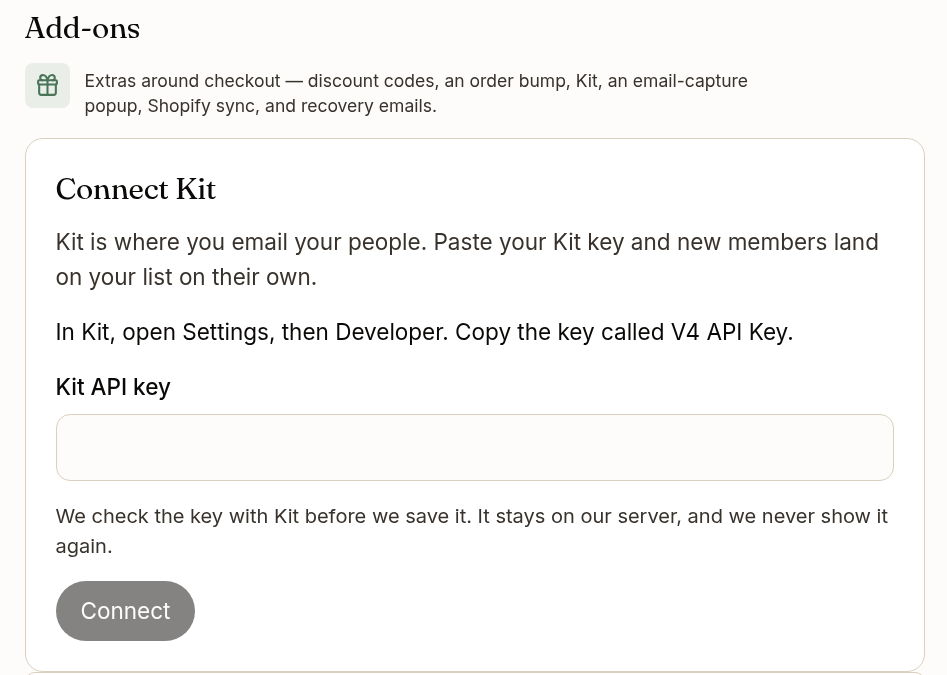
Find "Connect Kit" in SnailMailHQ
Now go to SnailMailHQ.
Open your club. Click Settings.
Scroll down to Connections. Or click Connections in the settings menu.
Find the box called Connect Kit.
Step 6
Paste your code and click Connect
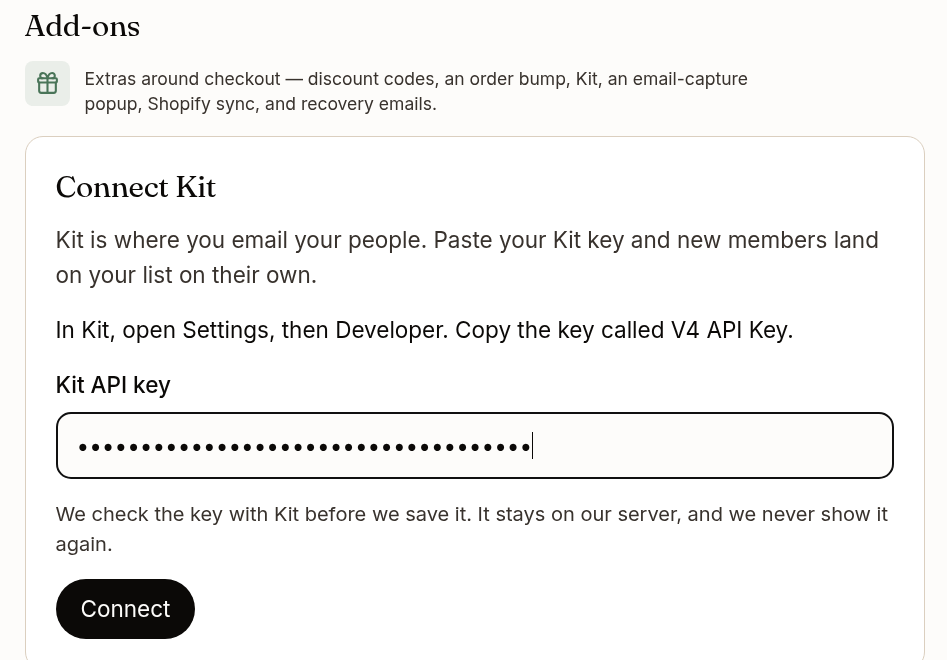
Click inside the Kit API key box. Paste your code.
(To paste: on a Mac, press Command and V. On a PC, press Ctrl and V.)
You'll see dots instead of letters. That's normal. It keeps your code private.
Click Connect. Wait a moment while we check with Kit.
Step 7
You're connected!
You'll see Connected to Kit. Well done!
From now on, every new member is added to your Kit list with the tag "Your club name member".
When someone cancels, they get the tag "Your club name cancelled".
A tag is like a sticky label on a person in Kit. It shows where they came from.
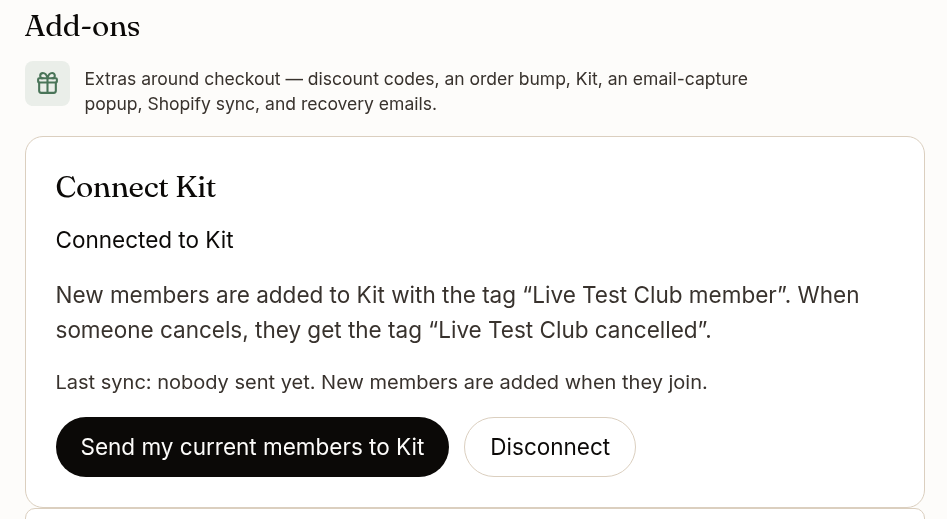
This sample club is called "Live Test Club". Yours will show your club's name.
Step 8
Optional: send the members you already have
New members go to Kit on their own. But what about members who joined before today?
Click Send my current members to Kit. This sends up to 500 members at a time.
The Last sync line tells you how many were sent.
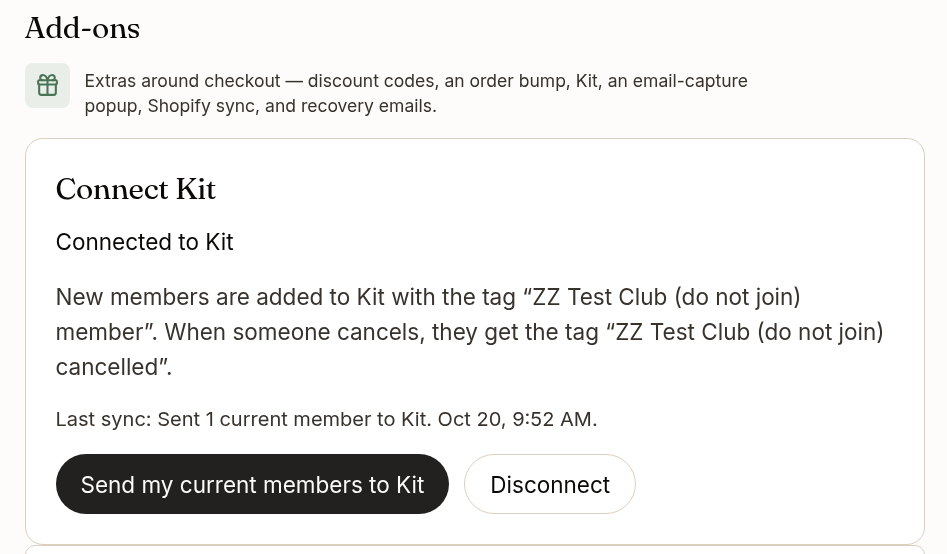
Here, "Last sync" says 1 member was sent to Kit.
Step 9
See your members in Kit
Go back to Kit. Click Subscribers.
Filter by your club's tag. Now you can see your club members.
You can use that tag to send them emails, or to start a sequence. (A sequence is a set of emails Kit sends for you, one by one.)
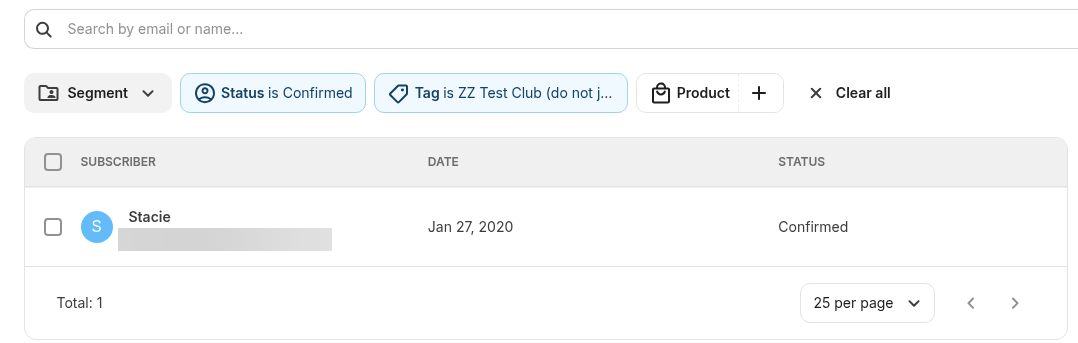
Members show up in Kit with your club's tag. We hid the email address.
Good to know
Your private code is safe
It stays on SnailMailHQ's server. We never show it again, not even to you.
If Kit has a problem
People can still join your club. The Last sync line will tell you if something didn't go through.
To stop
Click Disconnect in the Connect Kit box. That's it.
Questions?
We're happy to help. Email us at hello@snailmailhq.com
Happy mailing!
The SnailMailHQ team